
TeraBox for PC: How to Download and Use It on Windows and Mac (2026 Guide)
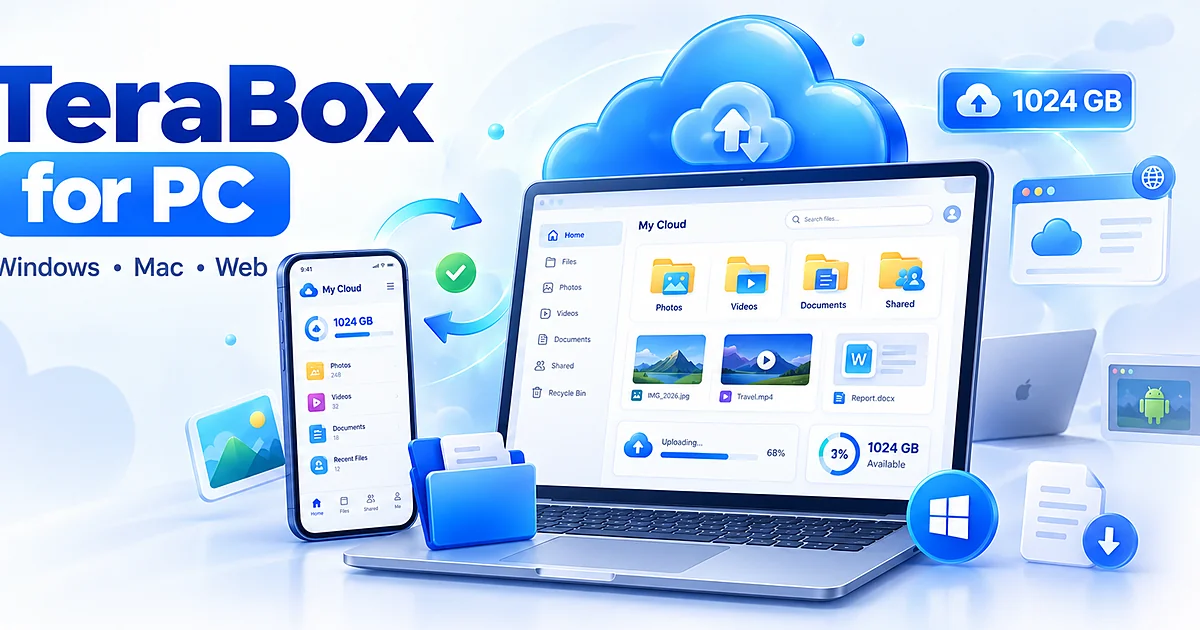
Most people think of TeraBox as a phone app for backing up photos. That is how the majority of users discover it. But if you work on a laptop or desktop, using TeraBox on your computer can make it far more powerful. Larger uploads, full folder backups, faster file management and easy drag-and-drop make the PC version a must for students, freelancers and anyone who handles a lot of files.
In this guide, you will learn how to install TeraBox on Windows and Mac, how to use its most useful desktop features, and how to fix the problems users commonly face. If you want a broader introduction to the app first, https://teerabox.com/ covers everything from the basics to safety tips.
Why Use TeraBox on a Computer?
The mobile app is great for quick backups, but the desktop version has clear advantages:
- Bigger uploads: Free users can upload single files of up to around 20GB on PC, compared to about 4GB on mobile.
- Folder backup: Back up entire folders, such as Documents or project files, instead of selecting files one by one.
- Drag and drop: Move files into your cloud as easily as moving them between folders.
- Better for large downloads: The desktop client is more stable than a browser when downloading heavy files.
- Comfortable file management: Organizing, renaming and searching is much easier on a larger screen.
Option 1: Download TeraBox for Windows
There are two official ways to install TeraBox on a Windows PC.
From the Microsoft Store:
- Open the Microsoft Store on your computer.
- Search for “TeraBox.”
- Click Get or Install and wait for the download to finish.
- Open the app from the Start menu.
From the official website:
- Visit the official TeraBox website.
- Download the Windows installer.
- Run the file and follow the on-screen instructions.
Both methods give you the same official app. The Microsoft Store version updates automatically, which makes it slightly more convenient.
Option 2: Download TeraBox for Mac
- Visit the official TeraBox website.
- Download the macOS version.
- Open the downloaded file and drag TeraBox into your Applications folder.
- Launch the app. If macOS asks for permission, allow it in System Settings under Privacy & Security.
Option 3: Use the Web Version
If you do not want to install anything, or you are using a shared or office computer, the web version is a good choice. Simply open the official TeraBox website in any modern browser, log in and start working with your files. It works on Windows, Mac, Linux and Chromebooks.
The web version is perfect for quick access, but for big uploads and downloads, the desktop app is more reliable.
Detailed installation steps and official download links for every platform are listed on http://teerabox.com/.
How to Log In on PC
Open the app and choose the same sign-in method you used on your phone: Google, Apple, Facebook or email. This is important. If you signed up with Google on your phone but log in with email on your PC, you will see an empty account instead of your files.
Once logged in, everything you uploaded from your phone will appear on your computer automatically.
Best Features to Use on the Desktop App
Upload Files and Folders
Click the Upload button or simply drag files and folders from your computer into the TeraBox window. Large folders upload in the background while you continue working.
Back Up Important Folders
Set up folder backup for directories like Documents, Desktop or a project folder. This keeps your work protected even if your laptop crashes or gets stolen.
Download Multiple Files at Once
Select several files, click Download and choose where to save them. The desktop app manages large downloads better and can resume if your connection drops.
Share Files With Clients and Teams
Right-click any file or folder and create a share link. This is ideal for sending large videos, design files or reports that are too big for email.
Search Quickly
Use the search bar to find any file by name. This saves a lot of time if your cloud contains thousands of files.
Common PC Problems and Quick Fixes
App will not install
Make sure you downloaded it from the Microsoft Store or the official website. Check that you have enough free disk space and restart your computer before trying again.
Upload is stuck
Check your internet connection and keep your computer awake during large uploads. Disable sleep mode temporarily if needed.
Slow download speed
Free accounts have speed limits. Use a wired or strong Wi-Fi connection and avoid running other heavy downloads at the same time.
Files not showing
Confirm you are logged in with the same method as your phone. Refresh the file list or log out and log back in.
Antivirus blocking the app
If your antivirus flags the installer, make sure it came from an official source. Official versions are safe to allow.
Stay Safe on Your Computer
- Download TeraBox only from the Microsoft Store or the official website.
- Avoid cracked or “MOD” versions that claim to unlock Premium. These can install malware on your computer.
- Do not use third-party “TeraBox downloader” tools that ask for your login details.
- Log out when using a shared or public computer.
- Keep a second backup of your most important files.
You can find a list of trusted sources and more safety advice on https://teerabox.com/.
Frequently Asked Questions
Is TeraBox for PC free?
Yes. The desktop app is free and comes with the same 1TB of storage as the mobile app.
Can I use TeraBox on Windows 10 and Windows 11?
Yes. The app works on both, as long as your system is up to date.
Do my phone files sync to my PC?
Yes. As long as you log in with the same account, all your files are available on every device.
Is the desktop app better than the web version?
For large uploads, folder backups and big downloads, yes. For quick access on someone else’s computer, the web version is more convenient.
Final Thoughts
Using TeraBox on your PC unlocks a more productive way to manage your cloud storage. You get bigger uploads, folder backups, easier organization and more reliable downloads, all with the same 1TB of free space. Whether you choose the Windows app, the Mac version or the web version, the key is to install it from an official source and use the same login on all your devices.
For more step-by-step guides, troubleshooting help and safety tips, visit http://teerabox.com/ and get the most out of TeraBox on every device you own.